Prototype Test
Upload your screens (exported from Figma or anywhere), draw hotspots, set a goal screen for each task, and see who got there, how fast, and where they went wrong.
Pre-filled with a four-screen shop prototype and one task, so you can try everything first. Swap in your own screens when you are ready.
Set up your test
Study title
Your prototype
PNG, JPG or WebP, or drag files here. Up to 20 screens, 2MB each. Export every screen at the same size.
Drag on the picture to draw a hotspot over a button or link. Drag a hotspot to move it, drag its corner to resize it. With the keyboard: Tab to a hotspot, arrow keys move it, Shift plus arrows resize it, Delete removes it.
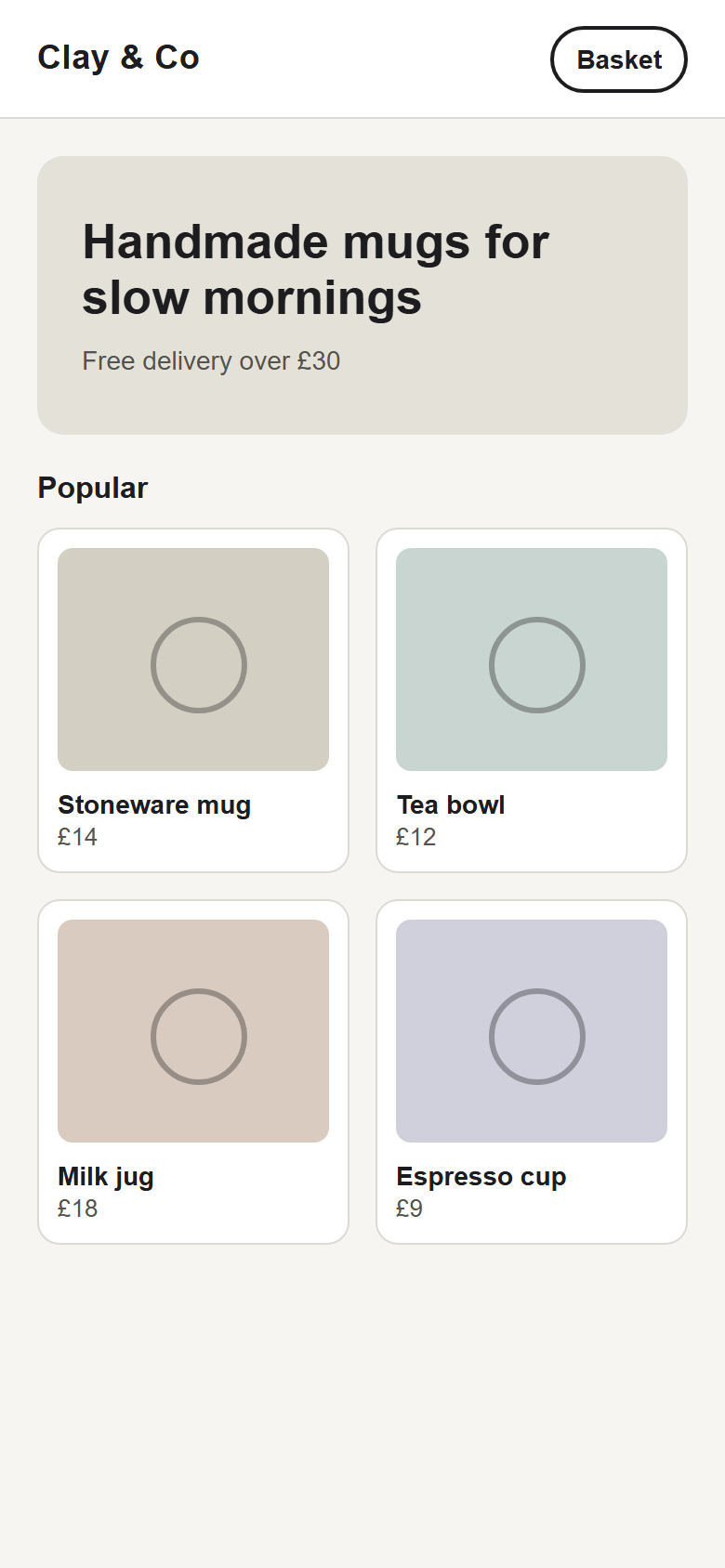
Hotspots on this screen
Tasks1
Blank opens on the prototype's start screen.
Reaching this screen counts as success.
One free-text question shown right after the task.
If it runs out, the task ends and is counted as timed out, apart from give-ups. Blank = no limit.
Up to 5 tasks. Each task ends when the participant reaches its goal screen, presses "I'm done", or gives up.
Options
Draw hotspots on a laptop. Participants can take it on a phone: screens scale to the width of the screen.
Participant journey
Optional. Empty boxes use the wording shown.
Shown first, on the start screen.
Shown under the welcome message, before the first step.
Questions before the study
Up to 3. Asked before the task. Don't ask for names or emails unless you need them; participants are told what's collected.
Questions after the study
Up to 3. Asked after the task.
Shown when the participant has finished.
Optional. Starts with https://. Sent after 5 seconds.
People enter it before seeing the study.
Stored as a hash. Change it later in Share.
Already have a study?
Paste your study key and results (owner) key to view your results.
Frequently asked questions
Do I need Figma?
No. Export your screens as images from Figma, Sketch, Penpot or anywhere else, or use screenshots. Choose "Upload screens", draw a rectangle over each button or link and pick the screen it opens. Participants click through the images and you get success, time, misclicks, routes and a click map.
Can I use a Figma prototype link instead?
You can choose "Figma link" and participants can view and click through the prototype. But clicks, paths and misclicks are not recorded yet, because Figma is still reviewing our app. Participants press "I'm done" when they finish. For full results, export your screens and use "Upload screens".
What do I get back?
For each task: the share of people who reached your goal screen (and how many went straight there), median time, the misclick rate, how many gave up, the most common routes, and clicks per screen on a click map. You can also download every row as a CSV.
Does it work on a phone?
Yes. Uploaded screens scale to the width of the phone. Draw the hotspots on a laptop, where it is easier to be precise. For a desktop design, tell phone participants to use a laptop.
What if a participant's session can't be recorded?
With uploaded screens this does not happen, as the recording is built in. With a Figma link nothing is recorded yet: the participant is told, can still finish, and their task is marked as not recorded. It is left out of the success rate instead of being counted as a failure.
Can I change the screens after sharing?
Changing a study after people have taken it makes earlier results hard to read, especially if you move the goal screen. For a clean result, build a new study for each version.